6.6 HMRC - Pillar 2 Online Filing
HMRC - Pillar 2 Online Filing in XML Authority
XML Authority provides integrated access to HMRC Pillar 2 services, allowing you to submit and manage Pillar 2 information electronically from the application.
The HMRC Pillar 2 functionality supports:
· submitting a Globe Information Return (GIR) XML file;
· submitting and amending a UK Tax Return;
· submitting and amending an Overseas Return Notification (ORN);
· submitting a Below-Threshold Notification (BTN); and
· reviewing Pillar 2 obligations, previous submissions and account activity.
Please note: HMRC Pillar 2 Online Filing functionality is licensed separately.
Before you start
Before using HMRC Pillar 2 Online Filing, please ensure that:
· your XML Authority licence includes HMRC Pillar 2 Online Filing;
· your organisation is registered for the relevant HMRC Pillar 2 services;
· you have your organisation's Pillar 2 ID;
· you have the appropriate HMRC credentials and access permissions; and
· for a GIR submission, the XML file has been prepared in accordance with HMRC Pillar 2 GIR requirements.
Open HMRC Pillar 2
Open XML Authority and select the HMRC - Pillar 2 utility from the application menu.
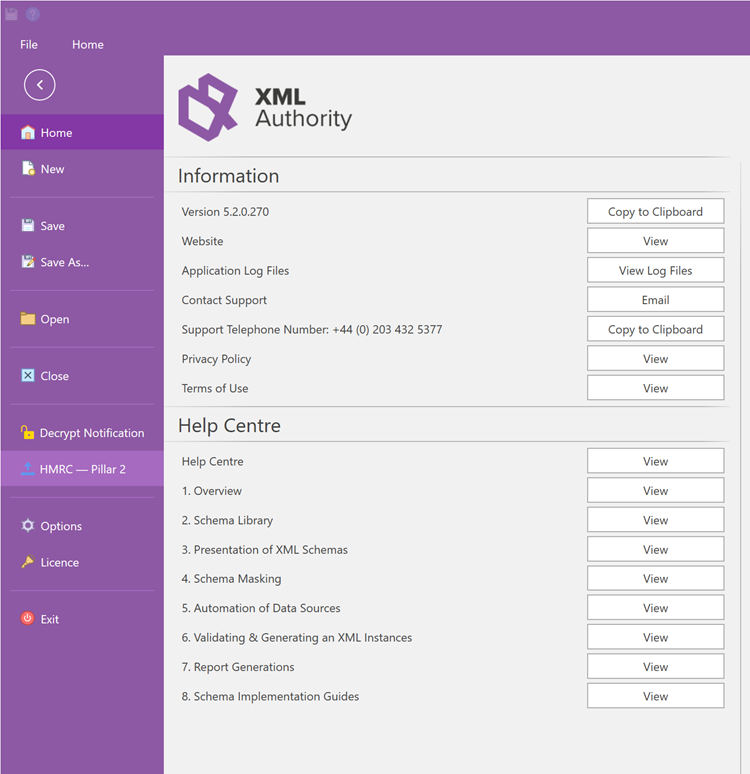
HMRC Pillar 2 utility in XML Authority.
Choose the correct submission method
| What you need to do | Where to do it |
| Submit a Globe Information Return (GIR) XML file | Secure Data Exchange File Upload tab |
| UK Tax Return, ORN, BTN, obligations or account activity | Pillar 2 tab after HMRC authentication |
Submit a Globe Information Return (GIR)
Globe Information Returns are submitted to HMRC as XML files using HMRC's Secure File Upload service.
1. Open the Secure Data Exchange File Upload tab.
2. Enter the required submission information, including your Pillar 2 ID.
Please note: Please note that the SRN and Subscription ID must both be your organisation's Pillar 2 ID; enter the same Pillar 2 ID in both fields.
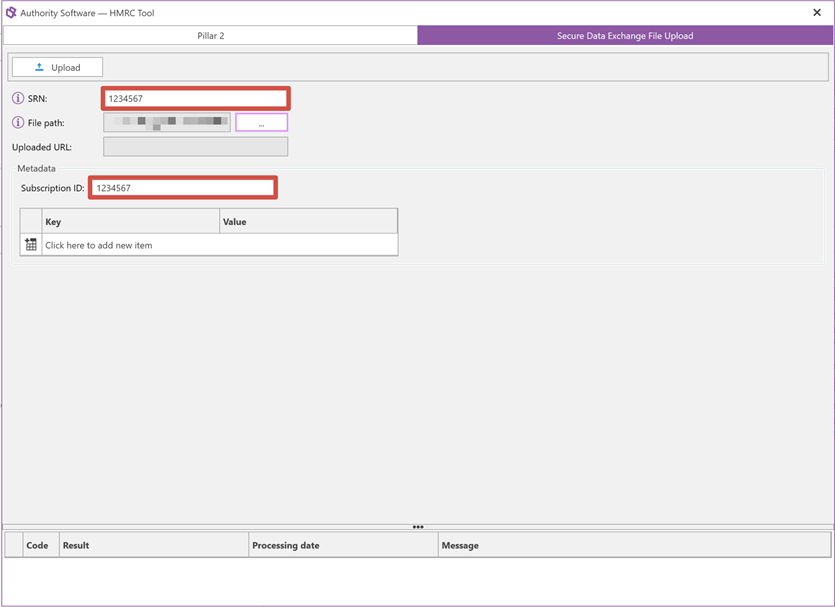
Secure Data Exchange File Upload screen before submission.
3 Select the GIR XML file you wish to submit.
4 Click Upload.
5 Review the response to confirm that the file has been successfully transferred.
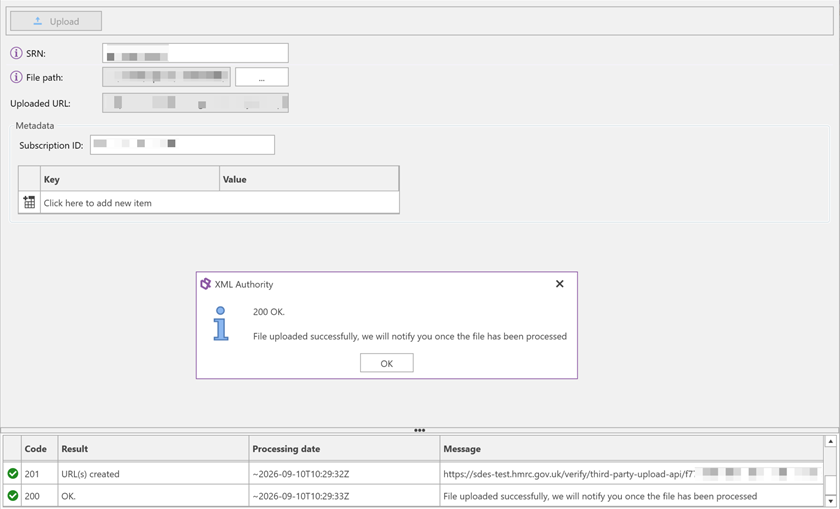
Example of a successful file upload response.
Please note: The XML file must comply with HMRC's requirements for Pillar 2 GloBE Information Returns. A successful upload confirms that the file was transferred; retain the response for your records.
Access the Pillar 2 services
1. Open the Pillar 2 tab.
2. Enter your Pillar 2 ID.
3. Click Login.
4. Complete the HMRC authentication process when prompted.
Once authentication has completed successfully, the available Pillar 2 functions can be accessed from the relevant tabs.
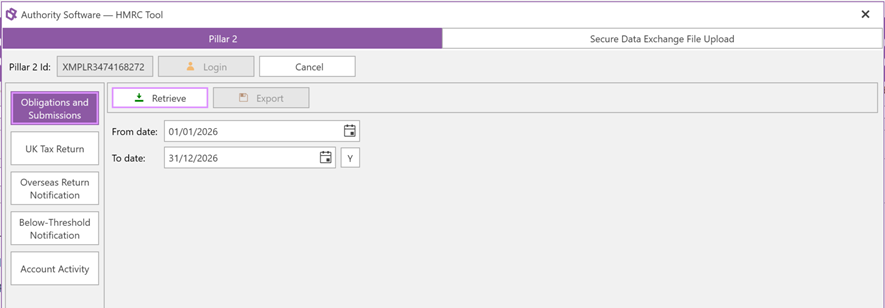
Pillar 2 login and accounting period screen.
Obligations and Submissions
Before making a Pillar 2 submission, we recommend checking the current status returned by HMRC for the relevant accounting period.
1. Enter the relevant accounting period.
2. Click Retrieve.
3. Review the obligations and their current status before submitting or amending a return.
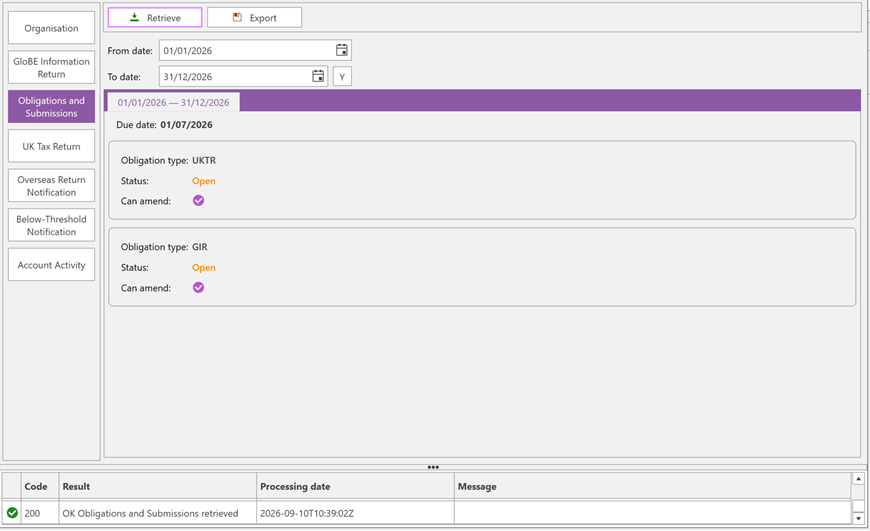
Example of obligations returned for an accounting period.
UK Tax Return
Open the UK Tax Return tab and complete the information required for the relevant accounting period.
· Use Submit when sending the return for the first time.
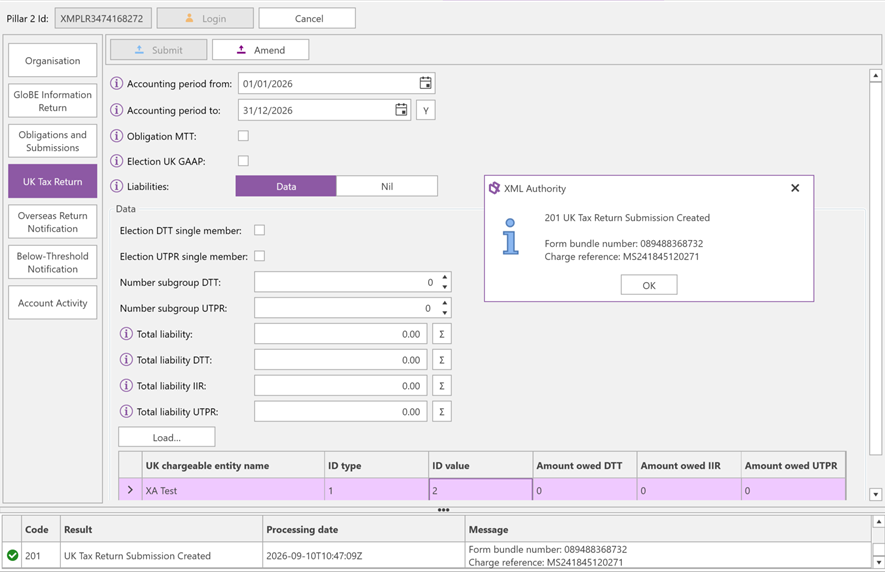
Example of a successful initial UK Tax Return submission.
· Use Amend when updating information that has already been submitted.
Tip: Use the [Y] button to set the interval to one year and the [Σ] button to calculate the total.
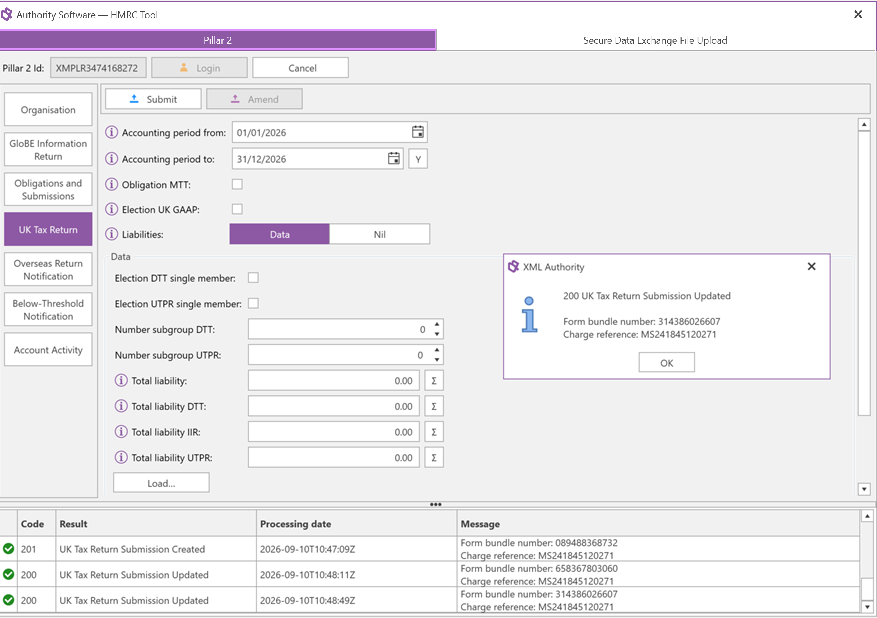
Example of a successful UK Tax Return amendment.
After submitting or amending the return, review the HMRC response displayed by XML Authority and retain the relevant submission or reference information for your records.
Overseas Return Notification (ORN)
An Overseas Return Notification is used to inform HMRC that the group's GloBE Information Return has been submitted in another jurisdiction.
1. Open the Overseas Return Notification tab.
2. Enter the relevant accounting period.
3. Enter the details of where and when the GIR was submitted.
4. Click Submit.
5. Review the response returned by HMRC.
Important: If an ORN has already been submitted for the accounting period, use the appropriate amendment functionality rather than submitting another initial notification.
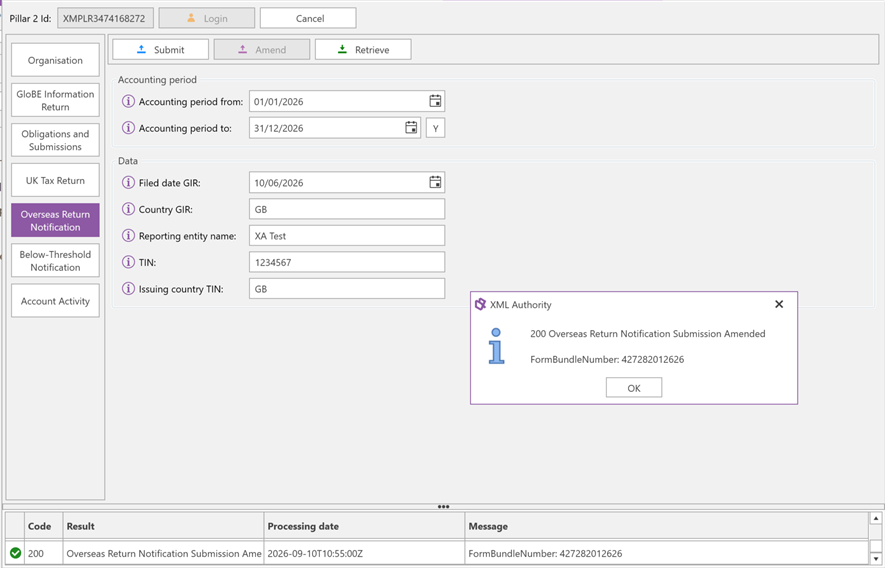
Example of an Overseas Return Notification response.
Below-Threshold Notification (BTN)
If your organisation is eligible to make a Below-Threshold Notification under HMRC's Pillar 2 requirements, you can submit the notification from the Below-Threshold Notification tab.
1. Open the relevant Below-Threshold Notification tab.
2. Enter the required accounting period.
3. Click Submit.
4. Review the response returned by HMRC.
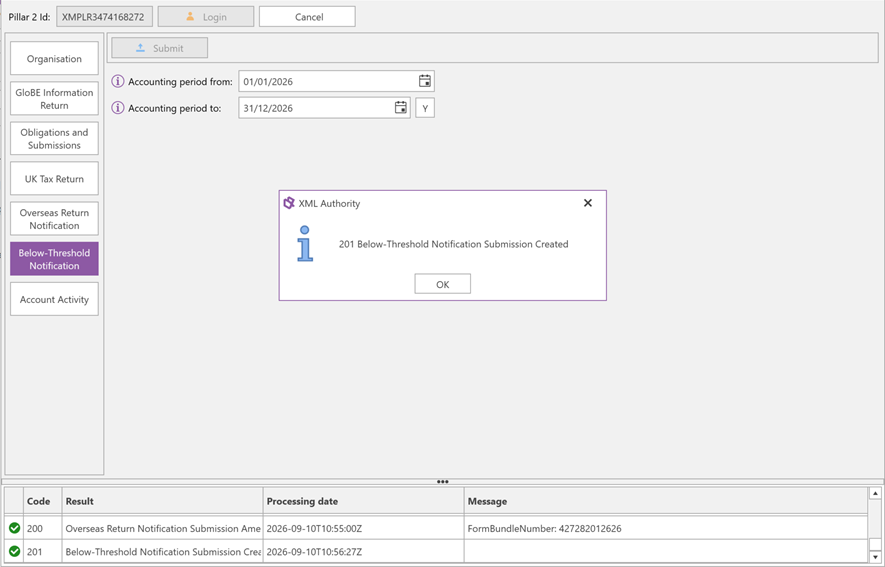
Example of a successful Below-Threshold Notification.
Account Activity
The Account Activity tab allows you to retrieve transactions and other account activity returned by HMRC for a selected date range.
1. Select the required From and To dates.
2. Click Retrieve.
3. Review the returned entries and, where required, use Export to save the information for further review or record-keeping.
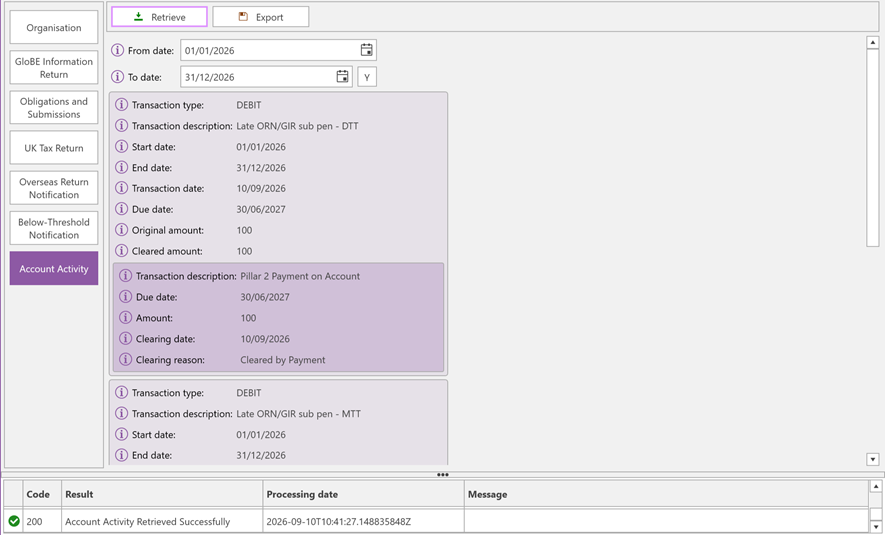
Example of account activity returned by HMRC.
Review HMRC responses
Please review the response displayed by XML Authority after each request. If a submission is unsuccessful, the response returned by HMRC should provide information about the error. Retain this information, as it can assist with identifying and resolving the issue.
Common response examples
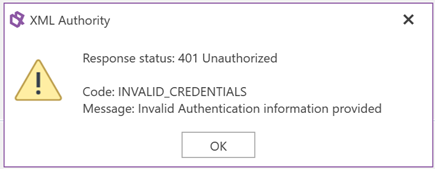
401 Unauthorized / INVALID_CREDENTIALS
Check that the Pillar 2 ID and HMRC authentication details are correct and that the user has the appropriate permissions.
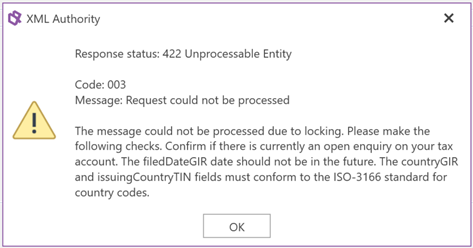
422 Unprocessable Entity
HMRC has received the request but could not process the submitted information. Review the detailed message, correct the identified data and submit the request again.
Please note: Where an HMRC response concerns the content or regulatory treatment of a return rather than the XML Authority application itself, you may need to confirm the required information with HMRC or your tax adviser.
Need further assistance?
If you experience difficulties using the HMRC Pillar 2 functionality in XML Authority, please contact Authority Software Support. To help us investigate your query, please provide:
· a description of the action you were attempting to perform;
· the accounting period concerned;
· the HMRC response status, code and message displayed;
· a screenshot of the relevant XML Authority screen;
· the version of XML Authority you are using; and
· where applicable, the XML file being submitted.
Security: For security reasons, please do not send passwords, authentication codes or other confidential login credentials to Authority Software Support.